Your home office isn't a smaller version of the office. It's a room in your house, sitting on a network shared with a smart TV and a teenager's phone, with a camera pointed at a pile of laundry. Most privacy problems in remote work come from that gap — the slow merging of the work setup and the personal one. The good news is that closing most of the gap takes an afternoon, not a weekend, and it doesn't require buying much of anything.
Work through this in order. The steps near the top protect you even if you skip everything below.
Start With the Machine You Actually Work On
Everything else sits on top of your device, so begin here. If you have a work-issued laptop, keep it for work. Don't install your personal cloud sync, your photo library, or your streaming accounts on it. If you genuinely need one machine for both, create a separate operating system user account for work and use it consistently — separate accounts, separate browser profiles, separate everything.
Then confirm the basics are actually on, not just assumed:
- Disk encryption. FileVault on macOS, BitLocker on Windows, LUKS on Linux. If the laptop is stolen from a café or a car, encryption is the difference between an inconvenience and a disclosure.
- Automatic updates for the OS, the browser, and the handful of apps you use daily. Most real-world compromises exploit flaws that were patched months earlier.
- Screen lock after two to five minutes, with a password required on wake. Not a four-digit PIN if you can avoid it.
- A password manager and unique passwords everywhere. Turn on two-factor authentication for email, banking, and your work single sign-on, using an authenticator app or a hardware key rather than text messages where the service allows it.
One thing people forget
Your email account is the master key to everything else, because password resets go there. Treat it as the most valuable account you own, and don't reuse its password anywhere.
Your Router Is the Front Door
Most home routers ship with a default administrator password printed on a sticker. Change it. While you're in the admin panel, check for a firmware update, turn off WPS, and make sure the wireless network is using WPA2 or WPA3 rather than an older standard.
Then set up a guest network and move the internet-connected appliances onto it — the smart TV, the doorbell, the printer, the robot vacuum, the tablet your kid uses. These devices rarely get security updates and don't need to see your laptop. Visitors use that network too.
About VPNs
Use your employer's VPN when they require it, since it protects traffic between you and the office. Understand what it doesn't do: it doesn't make you anonymous, and it doesn't stop a website from tracking you once you're logged in. If you're working from a hotel or café, a phone hotspot is often the safer choice than the venue's open Wi-Fi. Skip unfamiliar free VPN apps — you're routing all your traffic through a stranger.
Cameras and Microphones
A physical cover over the webcam costs nothing and settles the question permanently. Many laptops have a built-in shutter; use it.
Next, open your privacy settings on both your laptop and your phone and check which applications have camera and microphone access. Revoke anything that doesn't have a clear reason to be there. It's a five-minute audit that people almost never run.
Habits matter as much as settings. Join meetings muted and switch the camera on deliberately rather than by default. Before you hit join, look at what's behind you: whiteboards with client names, sticky notes, mail on the desk, a prescription bottle, a wall calendar. Blur and virtual backgrounds work, but they fail at the edges and they don't protect you when you lean out of frame. A plain wall beats a clever filter.
When you share your screen, share a single window or tab rather than the entire desktop, and close what you don't need open. Turn off notification previews so a message from your bank doesn't appear mid-presentation. Smart speakers and voice assistants with microphones belong in another room during client calls — check for a mute switch and use it.
Where Your Data Sleeps
Know which folders sync to the cloud, and on which account. Personal Dropbox or iCloud folders quietly syncing on a work laptop is one of the most common ways company material ends up somewhere it shouldn't. Uninstall or sign out of those clients on the work machine.
Backups are the other half of this. Keep an encrypted external drive, or a cloud backup protected with a strong passphrase you store in your password manager. Then test it — restore one file and confirm it opens. A backup you've never restored is a hope, not a plan.
Paper counts too. Printed contracts, sticky notes with passwords, and shipping labels all carry information. Find one lockable drawer or cabinet and make it the place where anything sensitive lives.
If you handle client data, financial records, or health information, your obligations come from a contract or a regulation, not from a blog post. Follow your employer's written rules and check with whoever handles compliance before improvising.
The People in the Building
Roommates, partners, children, cleaners, and the contractor fixing the boiler all have physical access to your workspace. Lock your screen every time you stand up. Put the laptop away when you're finished for the day rather than leaving it open on the kitchen table. If someone else in the house uses the same computer, give them their own account.
Also, don't broadcast. Headphones instead of speakers, a closed door where you can manage it, and a habit of not discussing client names on a call while a delivery driver stands in the hallway.
The One-Afternoon Walkthrough
- Turn on disk encryption and confirm it finished.
- Install all pending updates, then enable automatic updates.
- Change the router admin password, update firmware, confirm WPA2/WPA3, create a guest network.
- Move smart devices and visitor access to the guest network.
- Set screen lock timeouts on your laptop and your phone.
- Audit passwords: install a password manager, then enable two-factor authentication on email, banking, and work login.
- Review camera and microphone permissions; add a physical webcam cover.
- Remove personal cloud sync from the work device and check which folders sync on the personal one.
- Turn off notification previews on the lock screen and during screen sharing.
- Clear sensitive paper off the desk and into a lockable spot.
- Run a backup and restore one file from it.
Keep It Boring
Privacy at home isn't a one-time setup. It's a set of small, dull habits: locking the screen, glancing at the background before a call, thinking for two seconds before you install something. Put a ten-minute review on your calendar once a month, and check router firmware every few months or when the manufacturer prompts you. The point isn't to make your home office feel like a bunker. It's to make sure the boring defaults are on your side, so you can get back to work without wondering who else can see it.
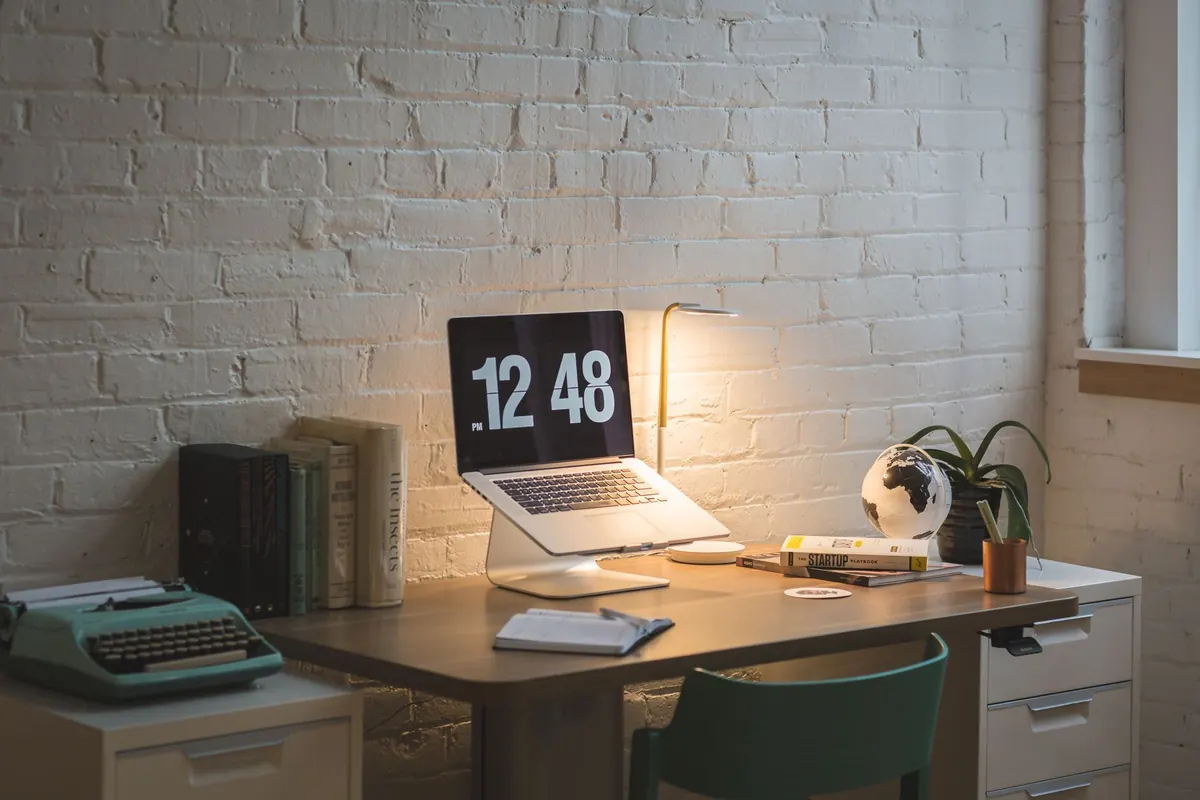
Photo: Burst / Pexels